Titan Cargo Authority

The guide

Titan, start to finish

A product of Leprechaun Mafia LLC

From the first sign-in to the invoice line, in the order you actually do it. Items marked Coming soon are real parts of Titan that are not finished yet.

  1. Each portal, at a glance
  2. Sign up and sign in
  3. Set up the company
  4. Trucks, trailers, drivers
  5. Build a load
  6. Permits
  7. Pretrip planning (route and clearance check)
  8. Escorts and pilot cars
  9. The driver on a moving load
  10. Delivery and proof
  11. Miles and invoicing

Each portal, at a glance.

One diagram per seat. Tap a diagram to open it full size, or open the instructions under it for every step in words.

Carrier / Dispatch portal

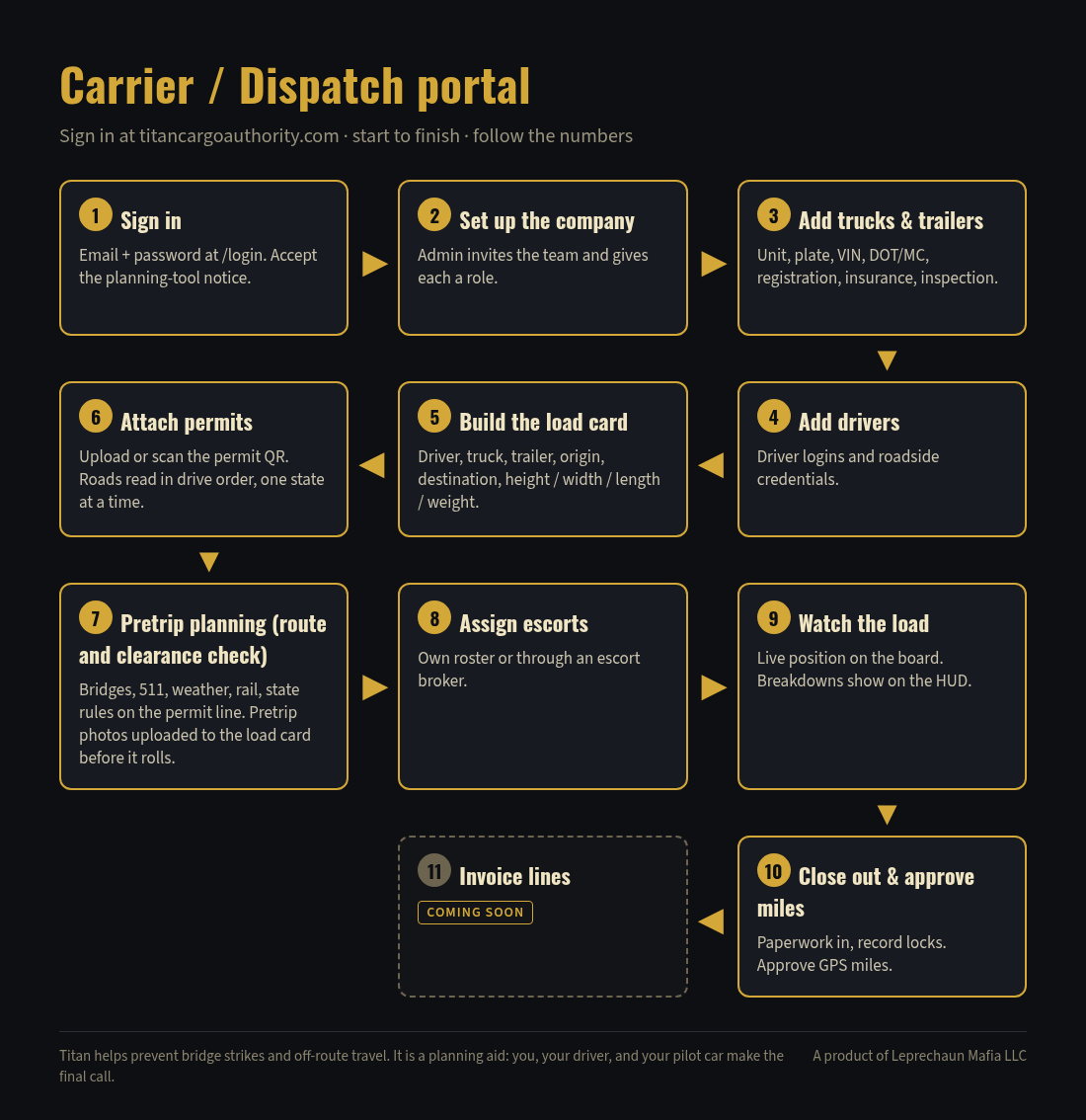
Carrier / Dispatch portal flow diagram, 11 numbered steps
Step-by-step instructions

Sign in at titancargoauthority.com

  1. Sign in — Email + password at /login. Accept the planning-tool notice.
  2. Set up the company — Admin invites the team and gives each a role.
  3. Add trucks & trailers — Unit, plate, VIN, DOT/MC, registration, insurance, inspection.
  4. Add drivers — Driver logins and roadside credentials.
  5. Build the load card — Driver, truck, trailer, origin, destination, height / width / length / weight.
  6. Attach permits — Upload or scan the permit QR. Roads read in drive order, one state at a time.
  7. Pretrip planning (route and clearance check) — Bridges, 511, weather, rail, state rules on the permit line. Pretrip photos uploaded to the load card before it rolls.
  8. Assign escorts — Own roster or through an escort broker.
  9. Watch the load — Live position on the board. Breakdowns show on the HUD.
  10. Close out & approve miles — Paperwork in, record locks. Approve GPS miles.
  11. Invoice lines — Coming soon

Driver portal

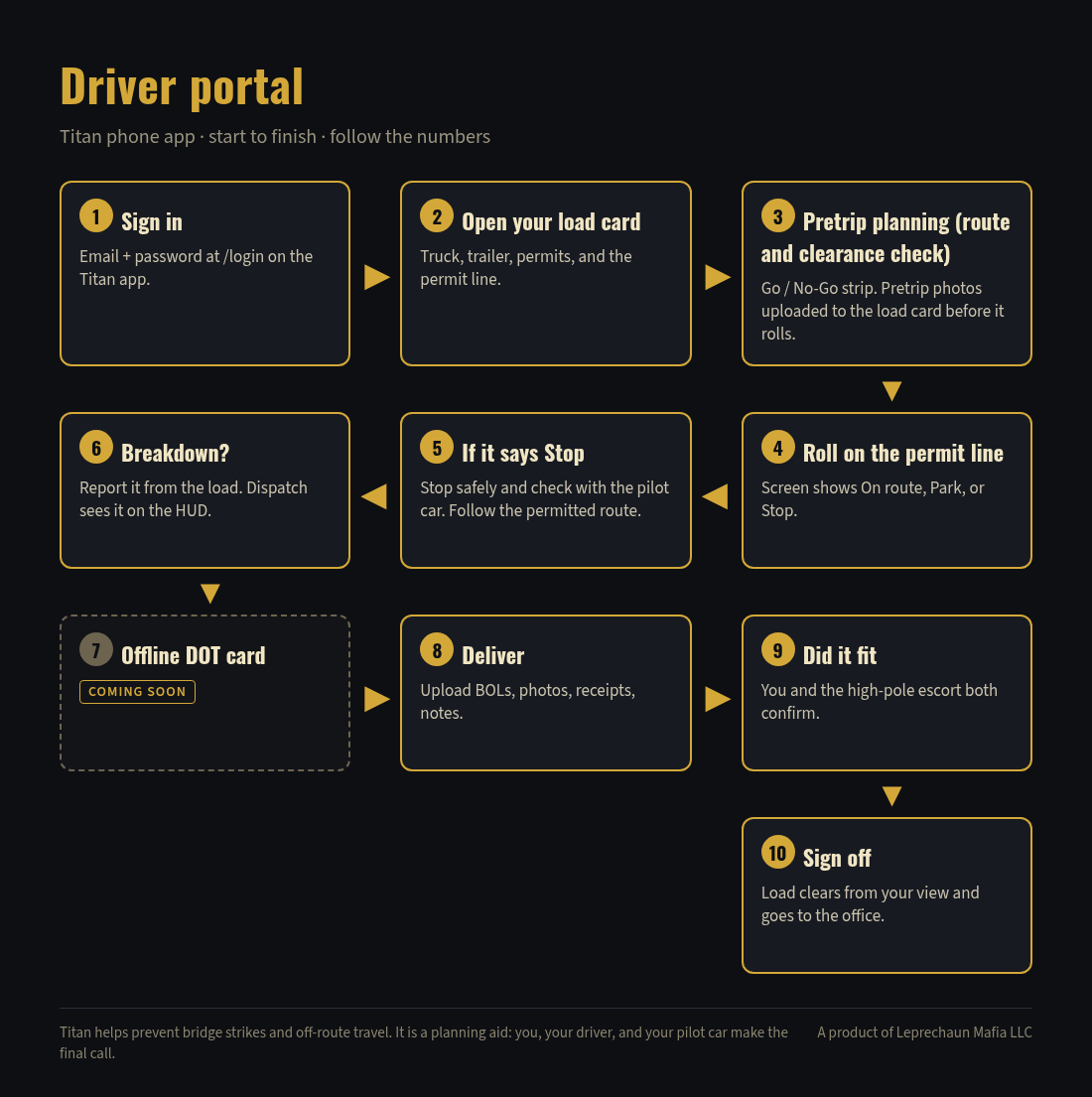
Driver portal flow diagram, 10 numbered steps
Step-by-step instructions

Titan phone app

  1. Sign in — Email + password at /login on the Titan app.
  2. Open your load card — Truck, trailer, permits, and the permit line.
  3. Pretrip planning (route and clearance check) — Go / No-Go strip. Pretrip photos uploaded to the load card before it rolls.
  4. Roll on the permit line — Screen shows On route, Park, or Stop.
  5. If it says Stop — Stop safely and check with the pilot car. Follow the permitted route.
  6. Breakdown? — Report it from the load. Dispatch sees it on the HUD.
  7. Offline DOT card — Coming soon
  8. Deliver — Upload BOLs, photos, receipts, notes.
  9. Did it fit — You and the high-pole escort both confirm.
  10. Sign off — Load clears from your view and goes to the office.

Escort / Broker portal

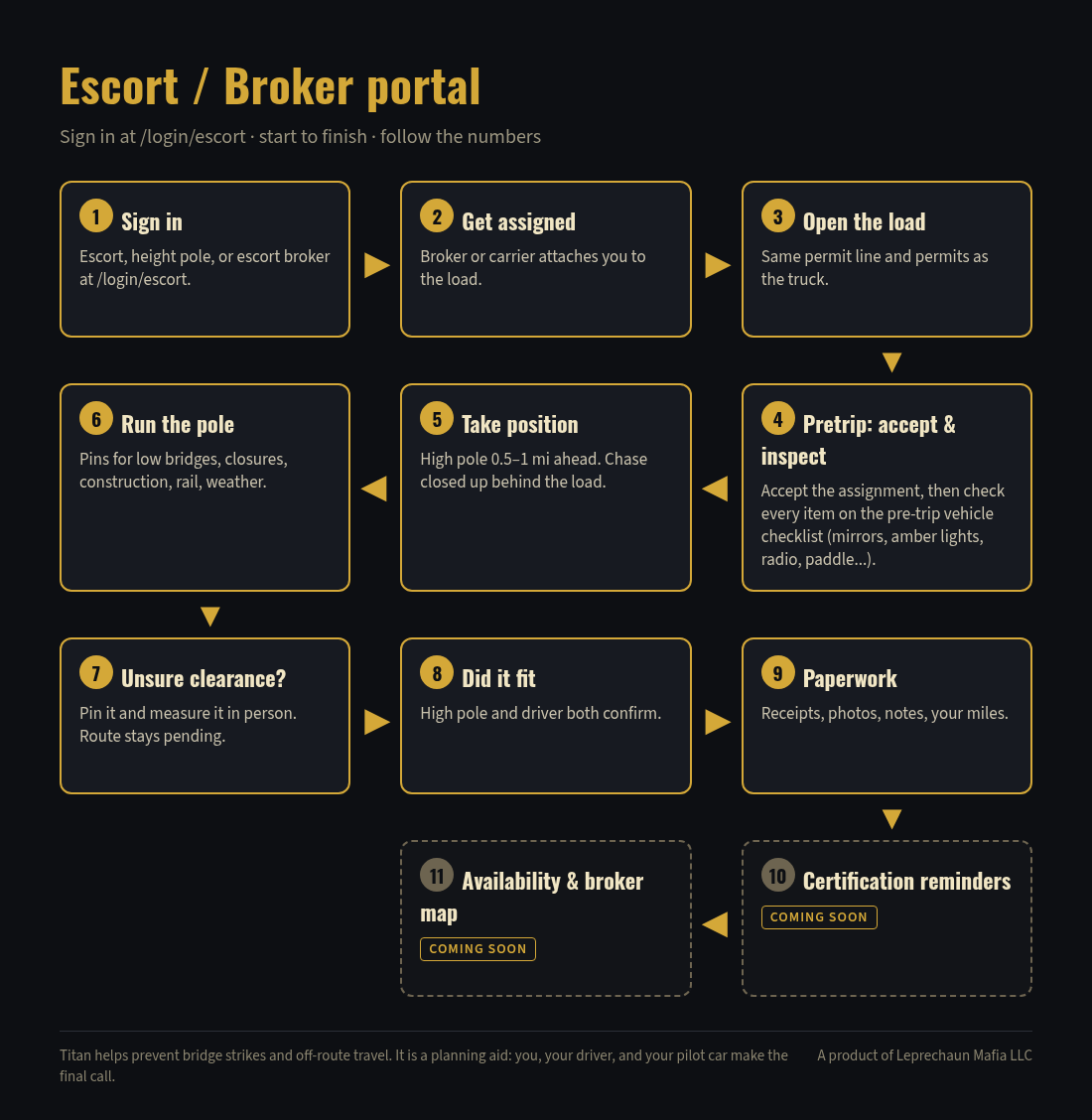
Escort / Broker portal flow diagram, 11 numbered steps
Step-by-step instructions

Sign in at /login/escort

  1. Sign in — Escort, height pole, or escort broker at /login/escort.
  2. Get assigned — Broker or carrier attaches you to the load.
  3. Open the load — Same permit line and permits as the truck.
  4. Pretrip: accept & inspect — Accept the assignment, then check every item on the pre-trip vehicle checklist (mirrors, amber lights, radio, paddle...).
  5. Take position — High pole 0.5–1 mi ahead. Chase closed up behind the load.
  6. Run the pole — Pins for low bridges, closures, construction, rail, weather.
  7. Unsure clearance? — Pin it and measure it in person. Route stays pending.
  8. Did it fit — High pole and driver both confirm.
  9. Paperwork — Receipts, photos, notes, your miles.
  10. Certification reminders — Coming soon
  11. Availability & broker map — Coming soon

DOT Officer portal

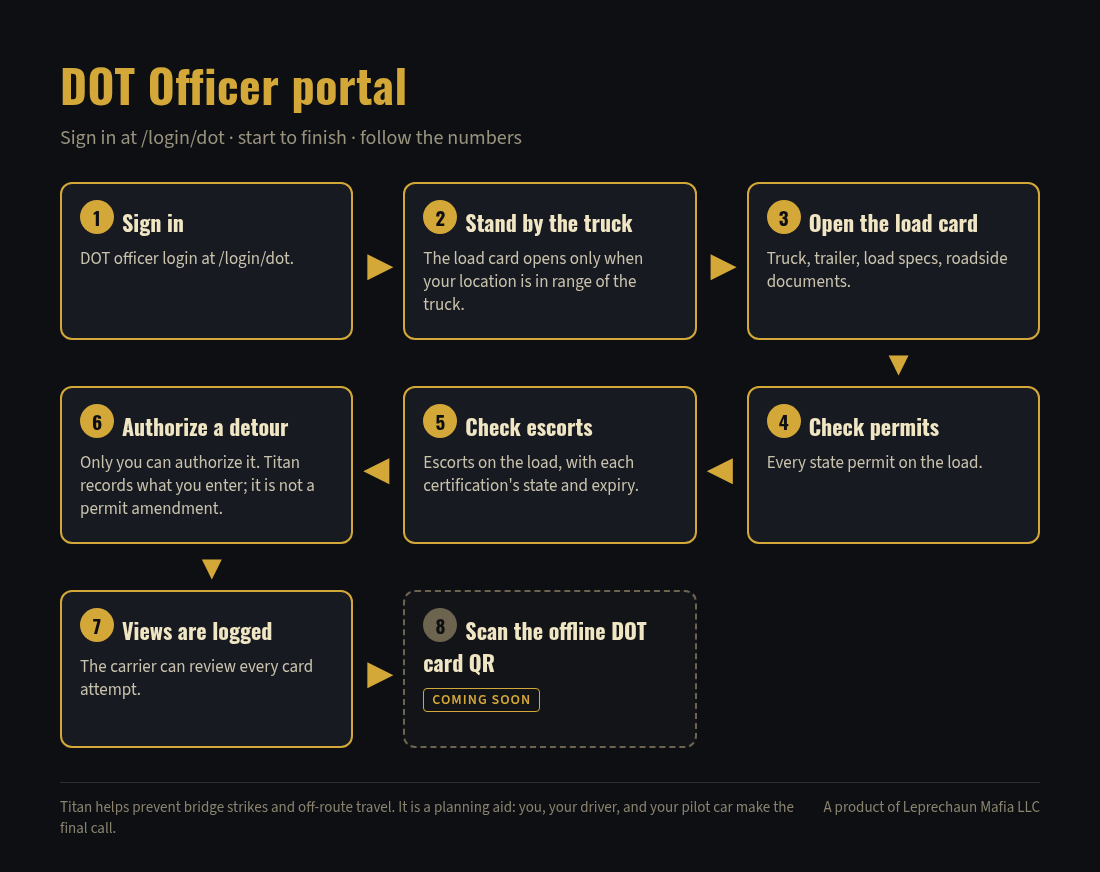
DOT Officer portal flow diagram, 8 numbered steps
Step-by-step instructions

Sign in at /login/dot

  1. Sign in — DOT officer login at /login/dot.
  2. Stand by the truck — The load card opens only when your location is in range of the truck.
  3. Open the load card — Truck, trailer, load specs, roadside documents.
  4. Check permits — Every state permit on the load.
  5. Check escorts — Escorts on the load, with each certification's state and expiry.
  6. Authorize a detour — Only you can authorize it. Titan records what you enter; it is not a permit amendment.
  7. Views are logged — The carrier can review every card attempt.
  8. Scan the offline DOT card QR — Coming soon

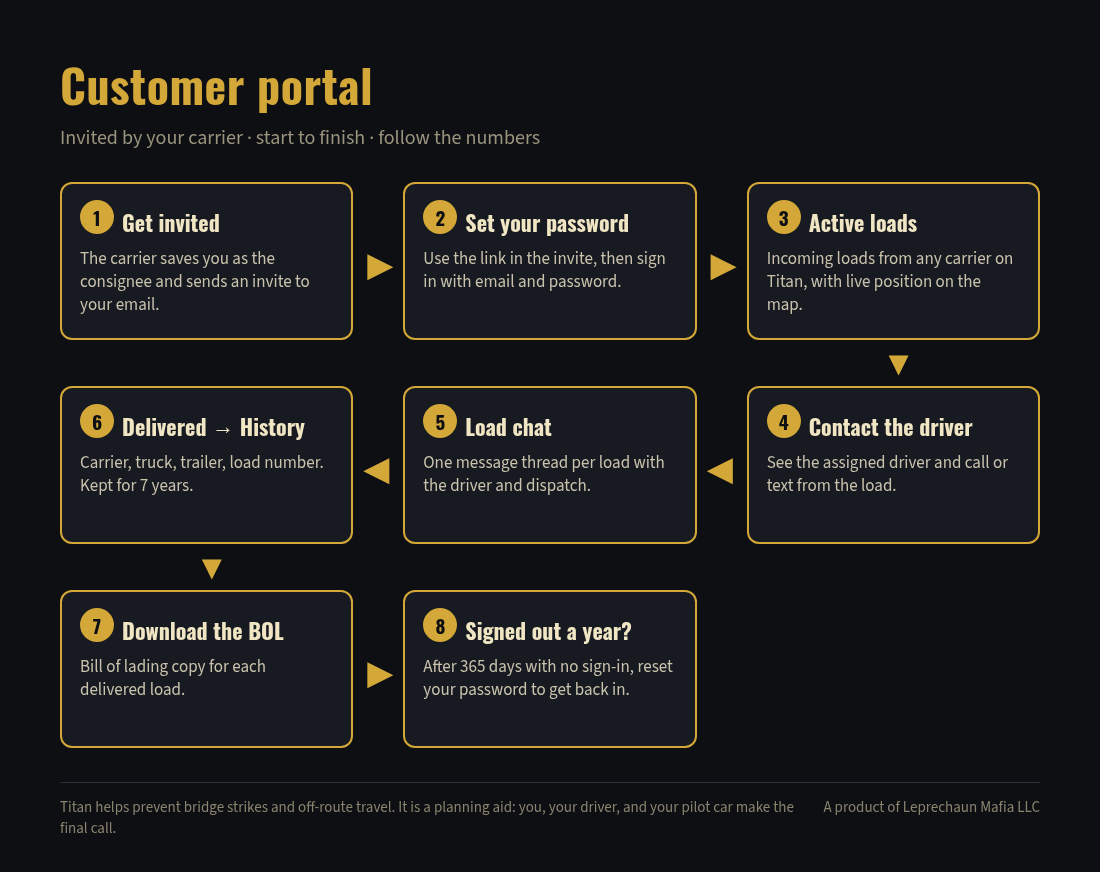
Customer portal

Customer portal flow diagram, 8 numbered steps
Step-by-step instructions

Invited by your carrier

  1. Get invited — The carrier saves you as the consignee and sends an invite to your email.
  2. Set your password — Use the link in the invite, then sign in with email and password.
  3. Active loads — Incoming loads from any carrier on Titan, with live position on the map.
  4. Contact the driver — See the assigned driver and call or text from the load.
  5. Load chat — One message thread per load with the driver and dispatch.
  6. Delivered → History — Carrier, truck, trailer, load number. Kept for 7 years.
  7. Download the BOL — Bill of lading copy for each delivered load.
  8. Signed out a year? — After 365 days with no sign-in, reset your password to get back in.

1. Sign up and sign in.

Open the desk at titancargoauthority.com or the Titan phone app. Sign up with your email and a password. Each seat signs in on its own page: carrier staff and drivers at the main login, escorts and escort brokers at the escort login, and DOT officers at the DOT login.

At login you accept the planning-tool notice. Titan is a planning aid. You, your driver, and your pilot car make the final call.

2. Set up the company.

The company admin sets up the carrier and invites the team. Each person gets a role, and the role decides what they can change. Dispatch and admins edit loads, trucks, and trailers. A driver or escort seat can see its work but cannot edit or delete company records.

3. Add trucks, trailers, and drivers.

Company setup is the truck, trailer, and driver cards. Every load card is built from them, so fill them in first.

  1. Truck cardUnit number, plate, VIN, DOT/MC, registration, insurance, and inspection. The DOT paperwork with expiration dates and approaching-expiry warnings is Coming soon.
  2. Trailer cardTrailer number, registration, insurance, and annual inspection with expiration dates.
  3. Driver cardThe driver's login and the credentials needed at the roadside.
  4. Out of serviceOnly the driver, dispatch, the shop, or the company admin can put a truck or trailer out of service. The shop opens a work order on the unit.

4. Build a load.

On the Dispatch board, start a new load card. Pick the driver, the truck, and the trailer, then enter the origin, the destination, pickup and delivery details, and the load dimensions: height, width, length, and weight.

Every load sits on the one dispatch board, with the load card, permits, and photos together. The load card has a photos section; pretrip photos go there before the load rolls.

5. Permits.

Attach each state's permit to the load. Titan reads the permit text and the notes written on it and pulls out the roads in the order the truck drives them.

  1. Upload or scanUpload the permit, or scan a permit QR code on the permit lookup page.
  2. One state at a timeA new Kansas permit replaces Kansas only. The rest of the trip stays where it was.
  3. Check the lineThe roads come out in drive order and are drawn as the permit line on the map.
  4. Ordering permits Coming soonFrom quote to roll, inside Titan.

6. Pretrip planning (route and clearance check).

Before the truck moves, Titan checks the permitted line against the load. It helps prevent bridge strikes and off-route travel. It does not replace checking with the authority that owns the road.

A check that never answers is shown as a stop, not as a clear road.

7. Escorts and pilot cars.

Attach escorts to the load, from your own roster or through an escort broker. The pole car and chase car see the same permit line and permits as the truck.

8. The driver on a moving load.

The phone follows the saved permit line and shows one of three states: on route, park, or stop.

Follow the permitted route. If the screen says stop, or anything on the road looks wrong, stop safely and check with the pilot car. Do not pick your own way around. Only state police authorization can move a permitted load off its line.

The driver

On route

On the permit line

Stop

Stop and check with the pilot car

On the road

  • GPS keeps tracking in the background
  • Report a breakdown from the load; dispatch sees it on the HUD
  • Offline DOT card with a QR for roadside checks Coming soon

9. Delivery and proof.

At the destination, the driver and escort finish the load card. With the sign-offs and the required paperwork in, the load clears from the driver and escort view and goes to the office.

  1. PaperworkBOLs, trip photos, receipts, and a notes box on the load's paperwork sheet.
  2. Did it fitThe driver and the high-pole escort both confirm the clearance.
  3. Locked recordThe load card is locked at finalize, with the route driven, stops, miles, and documents.
  4. Customer portalInvite your customer from the load. They track the live load, message the driver and dispatch, and download the BOL for 7 years.

10. Miles and invoicing.

Titan records GPS miles for each vehicle on the load. Miles the GPS missed are filled in and marked as estimated. Dispatch and the escort broker approve the miles, and the approved figure is rounded to whole miles.

Titan is not a party to payments between carriers, escorts, and customers. It keeps the records.